
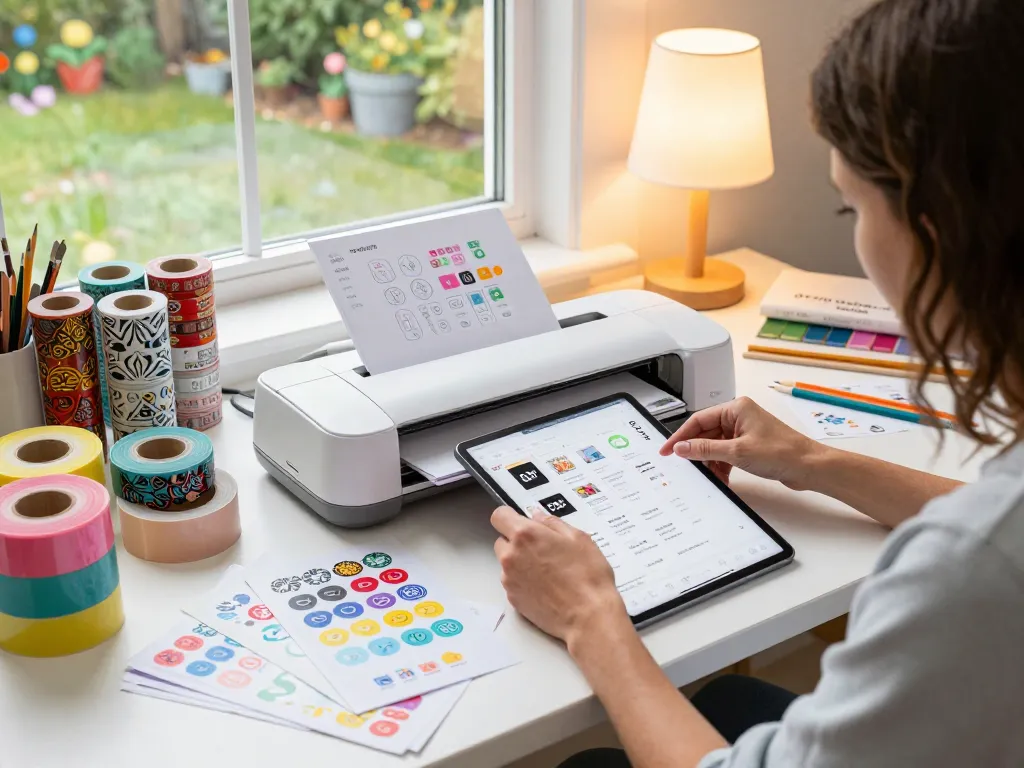
Understanding SVG Files: What You Need to Know
In the world of digital design, particularly in crafting and DIY projects, SVG files have become a staple. But what exactly are SVG files, and how can they enhance your creative endeavors? As the demand for customizable designs grows, understanding the nuances of SVG files is crucial for crafters, designers, and hobbyists alike. This guide will take you through the essentials of SVG files, their benefits, common misconceptions, and how to effectively use them with cutting machines like Cricut.
What Are SVG Files and Their Uses?
Scalable Vector Graphics, or SVG files, are a type of graphic format based on XML (eXtensible Markup Language). Unlike raster images, such as JPEGs or PNGs, SVG files are vector-based, allowing them to be scaled infinitely without losing quality. This unique characteristic makes them ideal for various applications, including:
- Vinyl Cutting: Perfect for creating decals, stickers, and custom designs for T-shirts or tumblers.
- Web Graphics: Their scalability enhances website performance and visual quality.
- Print Projects: SVG files provide crisp designs for print media, ensuring professional results.
- Interactive Graphics: SVG's XML basis allows for animation and interactivity in web projects.
Benefits of Using SVG Files for Crafts
Utilizing SVG files in your crafting projects comes with numerous benefits, including:
- Flexibility: SVG files allow for easy customization, giving you control over size and design without pixelation.
- Ease of Use: With compatible cutting machines, importing and utilizing SVG files is straightforward, enabling faster project completion.
- Cost-Effectiveness: Many SVG files are available for free or in affordable bundles, making them accessible for budget-conscious crafters.
- Community Support: A thriving online community exists for SVG users, with countless tutorials and resources available for assistance.
Common Misconceptions About SVG Files
Despite their advantages, there are misconceptions surrounding SVG files that can deter potential users:
- SVG files are only for advanced users: While they may seem technical, many user-friendly applications exist that simplify the usage process.
- SVG files are not versatile: SVG files support intricate designs and animations, debunking the myth of being limited in capability.
- Free SVGs lack quality: Many free SVGs are professionally created and can rival paid options, especially from reputable sources.
Choosing the Right SVG Files for Your Projects
When it comes to selecting the ideal SVG files for your projects, quality and compatibility are critical. Websites like Svg files offer an extensive library of high-quality options tailored for various crafting needs.
Assessing Quality in SVG Files
Not all SVG files are created equal. Here are key factors to assess quality:
- Complexity: Good SVG files maintain high detail without excessive nodes or complexities that can hinder cutting.
- Compatibility: Ensure the SVG file is compatible with your cutting machine and software.
- File Size: Larger file sizes can indicate more detailed graphics but may also slow down your machine.
Where to Find Premium SVG Files
Finding premium SVG files can elevate your projects. Here are some reliable sources:
- Design Bundles: A popular site known for its diverse selection of high-quality SVG files.
- Creative Fabrica: Offers a subscription model for unlimited access to premium SVG files.
- SVG Bundle: A comprehensive source featuring thousands of designs tailored for crafters.
Free vs. Paid SVG Files: Pros and Cons
When choosing between free and paid SVG files, consider the following:
- Pros: Cost-effective, vast selection available online.
- Cons: Quality can vary; limited customer support.
- Pros: Higher quality, typically customer support, and often more unique designs.
- Cons: Costs can add up, especially with frequent purchases.
Step-by-Step Guide to Using SVG Files with Cricut
Once you've selected your SVG files, the next step is using them with your Cricut machine. Here’s how to do it effectively:
Preparation: Setting Up Your Cricut Machine
Before working with SVG files, ensure your Cricut machine is adequately set up:
- Install the Cricut Design Space software on your device.
- Connect your Cricut machine to the computer or mobile device via USB or Bluetooth.
- Load the appropriate cutting mat and material for your project.
Importing SVG Files into Design Space
Follow these steps to import SVG files:
- Open Cricut Design Space and click on “Upload.”
- Select “Upload Image,” then choose the SVG file you want to use.
- Once uploaded, click “Insert Images” to bring the design onto your canvas.
Customizing Designs for Your Unique Touch
Customization is where you can really make the project yours:
- Use the editing tools to adjust size, color, and orientation.
- Group or ungroup different elements to arrange them as desired.
- Add text or additional graphics to enhance your design.
Best Practices for Crafting with SVG Files
To maximize your crafting efficiency and quality, consider these best practices:
Optimizing SVG Files for Cutting Efficiency
Ensure that SVG files are ready for cutting by:
- Simplifying complex designs where possible.
- Removing unnecessary layers or elements that won’t be cut.
- Testing cuts on scrap material before the final project.
Tips for Layering and Combining Designs
Layering can enhance design depth and visual appeal:
- Use contrasting colors to differentiate layers.
- Plan your layout on the cutting mat to minimize material waste.
- Consider the order of cuts to avoid damaging previous layers.
Common Issues and Troubleshooting Techniques
Even experienced crafters face challenges. Here are tips for common problems:
- Inconsistent Cuts: Check blade settings and ensure the mat is clean and sticky.
- File Compatibility Issues: Confirm that the SVG file type is supported by your software.
- Design Clipping or Distortion: Reupload the file and check for any discrepancies during the import process.
The Future of SVG Files and Crafting Trends
As we advance into 2026, the world of SVG files continues to evolve. Keeping an eye on upcoming trends can help you stay ahead in crafting:
Emerging Trends in SVG Files for 2026
The trends to watch for include:
- Increased Interactivity: The integration of animated SVG files for dynamic projects.
- Personalization: More designs catering to niche markets and unique personal preferences.
- Eco-Friendly Options: SVG designs focusing on sustainability in craft materials and methods.
The Role of Technology in Crafting
As technology progresses, its influence on crafting is undeniable:
- Advancements in cutting machine capabilities, offering more precise and varied cuts.
- Integration of AI in design tools for personalized suggestions and automation.
- Broader access to online design communities fostering collaboration and idea sharing.
Preparing for Upcoming Crafting Innovations
To stay relevant as a crafter, embrace new tools and techniques:
- Regularly explore new software updates and features for your cutting machine.
- Participate in workshops and online courses to enhance your skills.
- Network with other crafters to share insights and discover innovative practices.
Where can I download SVG files for free?
Several websites offer free SVG files, including FreeSVG.org, and SVG Repo, allowing you access to a wide array of designs for various projects.
What are the differences between SVG and other file formats?
The primary difference lies in scalability; SVG files maintain quality regardless of size, while bitmap formats like PNG lose clarity when scaled.
How to use SVG files in various projects?
SVG files can be used in print projects, web graphics, and as cutting files, making them versatile for any creative endeavor.
What tools are compatible with SVG files?
Common tools include Cricut Design Space, Adobe Illustrator, and Silhouette Studio, all supporting SVG formats for design and cutting.
How to troubleshoot common SVG file issues?
To troubleshoot, check for compatibility, ensure software is up-to-date, and review design elements for any errors before cutting.